graph LR
    A[Edited<br>Files] -- "git add" --> B(Staged<br>Changes)
    B -- "git commit" --> C[(Local<br>Repository)]
Intro, Git, and GitHub
Why we use code and why we should use version control
Matthew DeHaven
January 21, 2026
Welcome to the Course
Welcome to Econ 2020
Applied Economics Analysis
Instructor
- Matthew DeHaven (5th year graduate student)
TA
- Myles Ellis (5th year graduate student)
Introductions
What is your name?
Where are from?
What do you think your field in economics will be?
- (purely speculative, not holding you to it!)
A fun one:
- What is one of your favorite food spots in Providence?
What is this course?
- Course goals
- Longer-term assignments
- Weekly problem sets
- Lecture structure
- Class feedback
- Class website
Course Goals
- Able to replicate published papers in economics
- Learn how to program
- Specifically, R and a bit of Python, Julia, HTML
- Write clean, documented, reproducible code
- Apply software tools and best practices to economic research projects
Prepare you with practical skills for 2nd year on.
Longer-term assignments
Replication 1
- Replicate a published paper in economics
Final Project and Presentation
- Apply what we learn to exploring a research project idea
Replication 2
- Replicate a classmate’s final project
I will give more information on each of these assignments later.
Weekly Assignments
One “problem set” (really, a coding exercise) due each week.
These will be due:
- start of Monday class time
The goal is to…
- practice the material from lectures
- learn some new methods on your own
The first assignment is due next class.
Lecture Structure
The goal for lectures:
Lecture
In class activity or coding exercise
Lecture
Live coding example
This will adjust depending on the topic being covered.
Please bring your computers to class!
Class Feedback
You will fill out a survey at the end of each lecture.
These will ask some questions about…
- material comprehension
- teaching feedback (i.e. things I can do better)
These are not graded, but filling them out counts as your participation grade.
If you miss class, do not fill out the survey.
Course Website
All of the material for this course lives on a course website.
- course schedule
- lecture slides
- assignments
- guides
I will be updating the website throughout the course.
Course Website Tour
Link on Canvas and on my website.
Why code?
Why code?
Why do we program instead of simply open Excel, highlight the right data, hit the “regress” button?
Many reasons, but a main one…
Programs are reproducible documents of the steps we took and decisions we made.
Reproducibility is becoming more and more important in economics.
Replicatibility vs Reproducibility
Reproducibility: same data \(\implies\) same results
- Computational Reproducibility: same code + same data \(\implies\) same results
- Recreate Reproducibility: recreate code + same data \(\implies\) same results
Replicability: new data \(\implies\) same results
I will be using these terms interchangeably, but we are focused on reproducubility, specifically computational reproducibility.
More categories and desription in A framework for evaluation reproducibility and replicability in economics (2023), Dreber, Anna, Magnus Johannesson.
Importance of Replication
Writing reproducible code allows
others to trust your results.
you to know what you did six months ago.
Before the Current Version
Code keeps a reproducible state of our current project.
But what about the decisions we made before hand?
What if we decide we preferred the model we ran 6 months ago?
One solution: make copies of all your files with “_vXX”
Better solution: use version control
Version Control and Git
Version Control
Version control keeps track of files at different states (“commits”),
by storing the differences between the file in one “commit” and the next.
This allows us to
- see the history of any file
- revert to any point in that history
Why do we need version control?
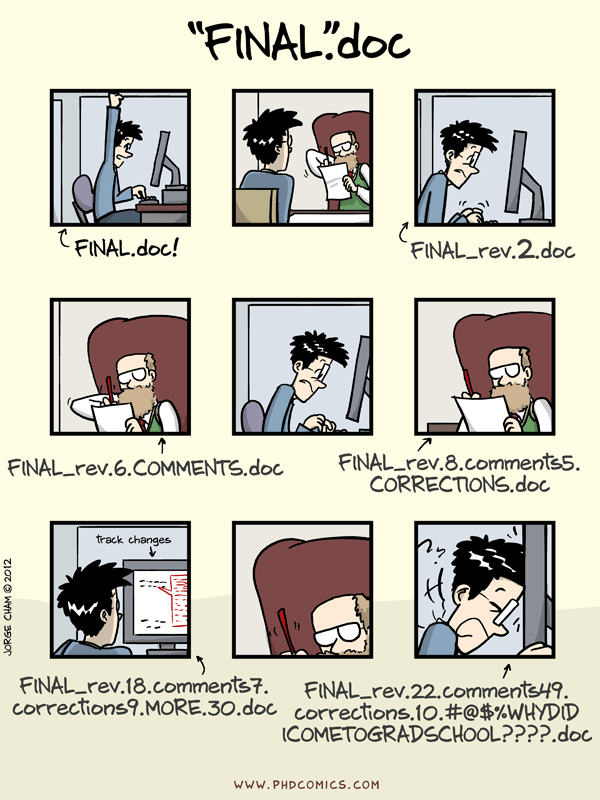
Why do we need version control?
- To the right, a hypothetical project directory
- It runs some regressions, makes output LaTeX files
- Which file creates the second version of the output?
- Is the “_CA” or “_MD” files more recent?
- Which is the current file to use?
- project/
- code/
- run_regs.R
- run_regs_v2.R
- run_regs_v2_MD.R
- run_regs_v2_CA.R
- run_regs_20240101.R
- output/
- reg_results.tex
- reg_results_v2.tex
- code/
What is Git?
- An implementation of version control
- Very popular among programmers
- Operate through command line or choose from many easy to use GUIs
- We will be using VS Code’s built in Git extension
- Additional tools (namely, GitHub) for collaborating with others
Git Process
git add: select which edited files to include in the next commit
git commit: save staged changes as a new commit in the repository
- always includes a commit message describing the changes
Git Commit Graph
Once you have some commits, you can view the history of your repository.

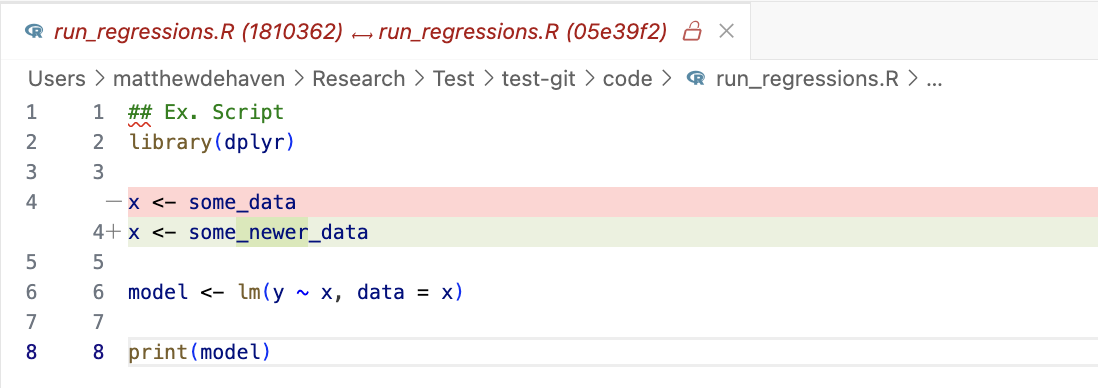
Git File Revisions
And we can look at the difference between the current version of the file, and any of the saved commits.
The changes from the “Updated data source” commit:
GitHub
How is GitHub different from Git?
Git: version control stored on your computer
GitHub: version control stored online
- backups your project
- allows collaboration with others
- let’s you share your work
GitHub in this course
We will be using GitHub extensively in this course.
All of your problem sets will be submitted on GitHub.
Your final project will be a GitHub respository,
and will be graded in part by its commit history.
And we will see how GitHub also makes it easy to host websites.
Git and GitHub
From now on, think of Git and GitHub grouped together.
We won’t use one without the other.
Class Activity
Class Activity
Partner with someone near you
Navigate to Grant McDermott’s GitHub page: https://github.com/grantmcdermott
- A principal economist at Amazon, some of this course is based off of a course he taught
Explore a commit history on one of his repositories
- Click on a repository
- Click on “Commits” on a repository page
- Click on a few commits to see the changes made
Be prepared to share with the class one commit
- What did he change in that commit?
Git and GitHub Details
Git and GitHub Details
- Initializing Git from GitHub
- Git Workflow
- Staging
- Commit messages
- Committing
- Pushing to GitHub
- Ignoring files
Initializing a GitHub Repository
- Create a new repository on GitHub
- Copy the repository URL
- Clone the repository to your computer
- “clone” means copy the repository from GitHub to your computer
graph LR

  A[(GitHub<br>Repository)] -. "git clone" .-> B[(Local<br>Repository)]

  subgraph Local Computer
  B[(Local<br>Repository)]
  end
This is the process you will be using for your homework assignments. I will show an example at the end of class.
Committing file changes
Once you edit a file, Git will notice a change.
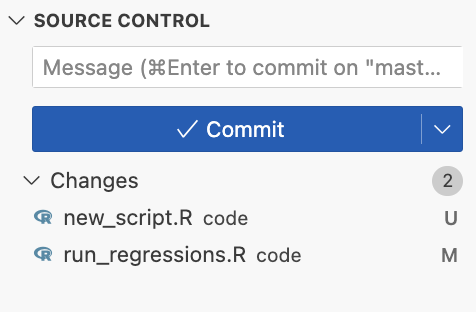
I edited my previous script “run_regressions.R” and added “new_script.R”.
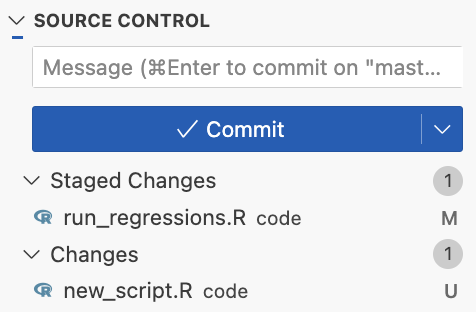
Staging changes
Once you are at a point to commit, first you stage your changes.
This allows you to select the changes you wish to commit at this time.
Commit Messages
You always have to write a message with every commit.
They also have a character length limit, so they have to be short.
But try to make them useful!
Don’t use:
- “edits”
- “hi”
- “acdfasdfadaf”
Do use:
- “Reran with data for 2020”
- “Robust check for table 1”
- “Made reg loop more efficient”
Commit Messages
Here’s one for our example:
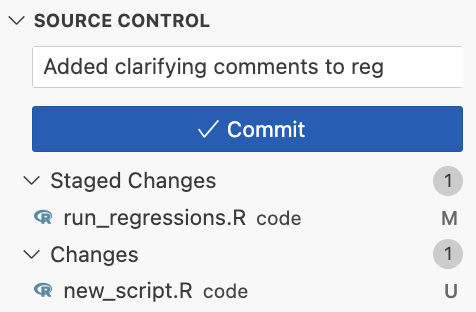
Remember, you will be looking back at your Git messages, so try to write something helpful!
Committing
Then you hit “commit”!
And a new commit is added to the history.

Pushing commits
Now that you have a new commit you can push it to GitHub.
You can push after one or multiple local commits.
graph LR
  subgraph Local Computer
  A[Edited<br>Files] -- "git add" --> B(Staged<br>Changes)
  B -- "git commit" --> C[(Local<br>Repository)]
  C --> A
  end

  C -- "git push" --> D[(GitHub<br>Repository)]
What files should be tracked?
Always track:
- code, raw data, documentation (readme files, etc.)
Sometimes track:
- intermediate data, output files (tables, figures, etc.)
Never track:
- very large files (> 100 MB)
- Can set up Git Large File Storage (LFS) for some large files
- private information (API keys, etc.)
How to ignore files with Git
For files you do not want Git to track, use a .gitignore file.
Simply a text file named .gitignore in your project folder.
- List the files one by one
- List of folders
- Use regular expressions for patterns (we’ll cover regex later)
How Git stores files
When you initialize Git in a folder,
- a hidden
.gitfolder is created - a copy of every current file and subfolder is stored
When you commit changes,
- a new copy of every changed file is stored
- along with the original file
When Should You Commit?
- After completing a logical unit of work
- “Fixed bug in regression loop”
- “Added summary statistics table”
- Before trying something experimental
- Multiple times per work session
- Not just at the end of the day!
Think: “If I had to explain what I just did to someone, would it be one clear sentence?”
Coding Example
Coding Example
A tour of github.com
Showing the Git workflow
- new repository
- clone to local computer
- edit files
- stage changes
- write message
- commit
- push
Take a look at Assignment 1 together