[1] 4Dynamic Documents with Quarto
Rendering code and markdown into documents and presentations
Matthew DeHaven
April 6, 2026
Quarto
How Quarto Works

Quarto Markdown Content
Quarto uses markdown for text content.
A Code Chunk
A code chunk is demarcated by triple backticks: ```
These are simply formatted as code (ie monospace font), but are not executed.
```
x <- 2 + 2
print(x)
```
Would be rendered as:
x <- 2 + 2
print(x)
You can write code chunks in any markdown document.
Adding a Code Cell
If we want to execute code in our document, we use a code cell:
The triple backticks ``` are used to demarcate a code chunk.
The {r} tells Quarto this is an R code cell.
Quarto Document with Code Cell
Quarto Engines
Quarto can run code in a variety of languages, called “engines”:
- R
- Python
- Julia
- Observable (a JavaScript plotting library)
You can only use one coding engine in a single document—no mixing languages.
- You can use OJS in any document, as it’s executed client-side
- You can always call Python or Julia from R with
reticulateandJuliaCall, or vice versa with packages specific to each language
Python and Julia Code Cells
Python:
Julia:
Live Coding Example
- Render basic Quarto document
- to HTML
- to PDF
- Add a code chunk (no engine)
- Add a code cell (R)
Quarto Code Cells
Code Cell Options
Code cells have a variety of settings,
- echo
- output
- include
- and more…
These are set with a special comment #| in the first lines of the code cell:
Code Cell Options
Code cells have a variety of settings,
- echo controls if the code is printed in the document
Code Cell Options
Code cells have a variety of settings,
- output controls if the result is printed in the document
Code Cell Options
Code cells have a variety of settings,
- include controls if the code and result are printed in the document
Code Cell Settings in the YAML
Instead, you can set the code cell settings for all cells in the YAML.
Code Cells Share an Environment
All of your code cells run in order, in the same R session.
This means you can use variables and packages from prior code cells.
Inline Code
You may want to reference one of your variable values in the text of your document.
Outputting Figures
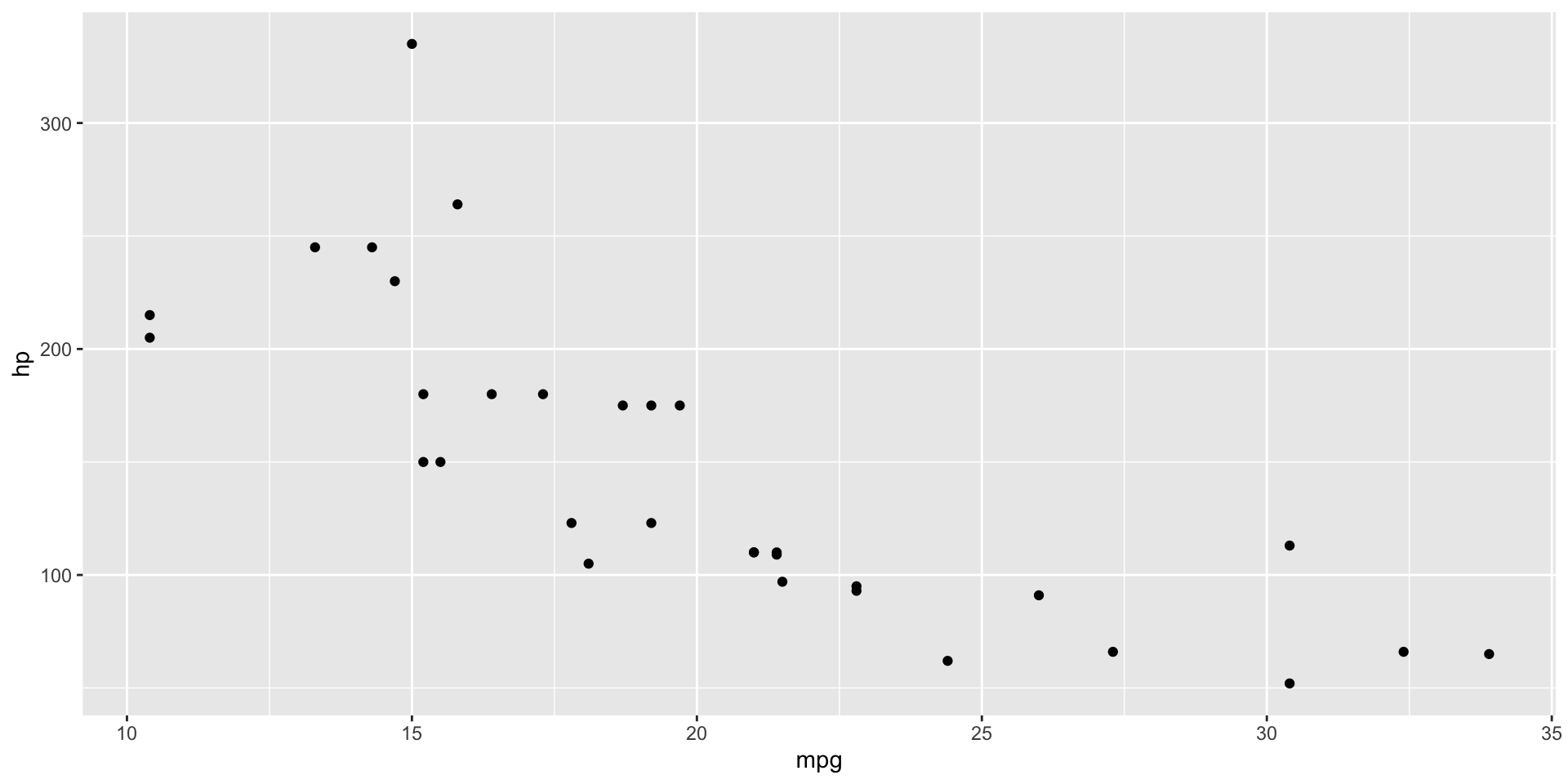
Code cells can output figures.
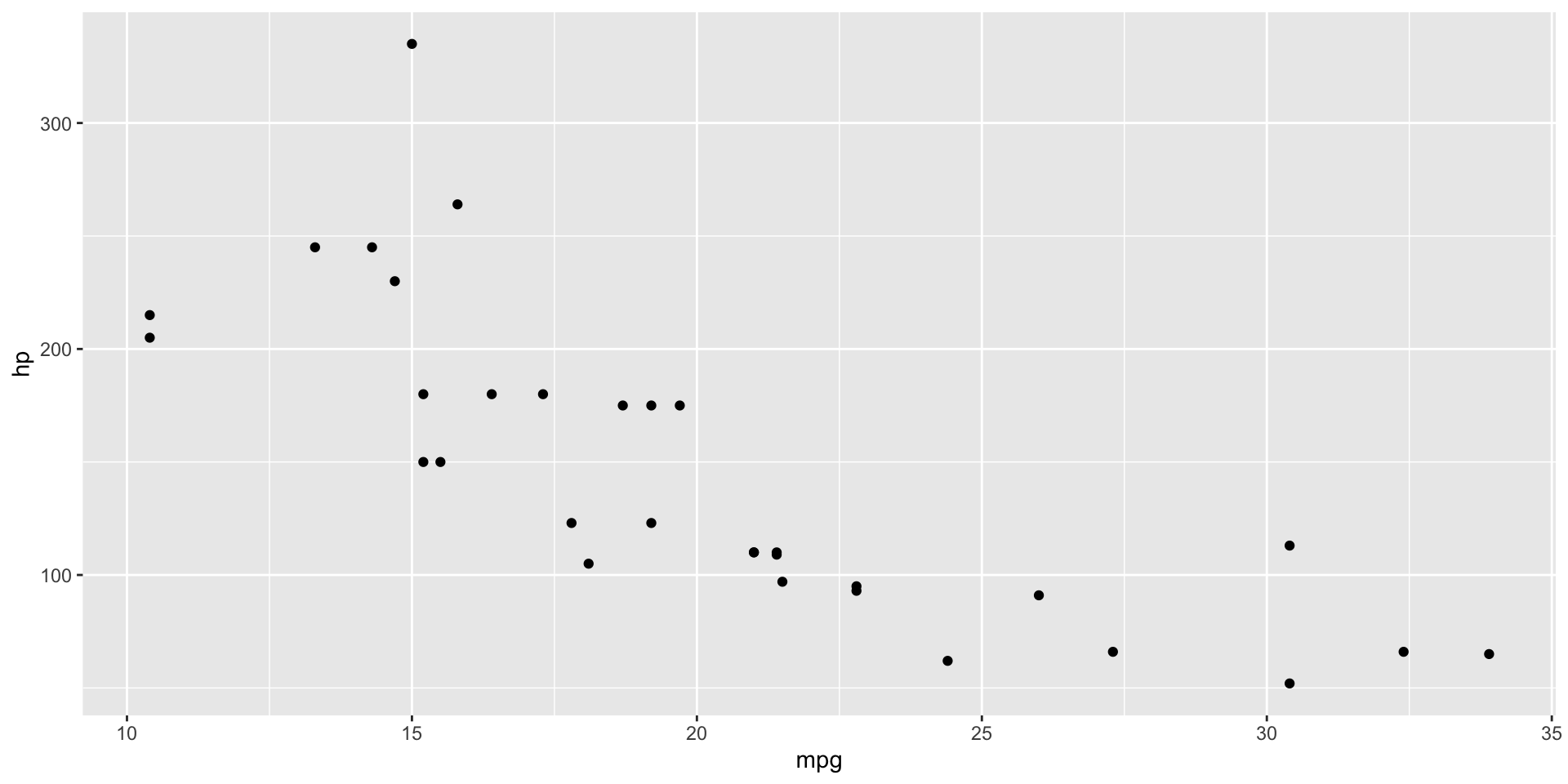
Outputting Figures
Use fig-cap to set a caption (title).
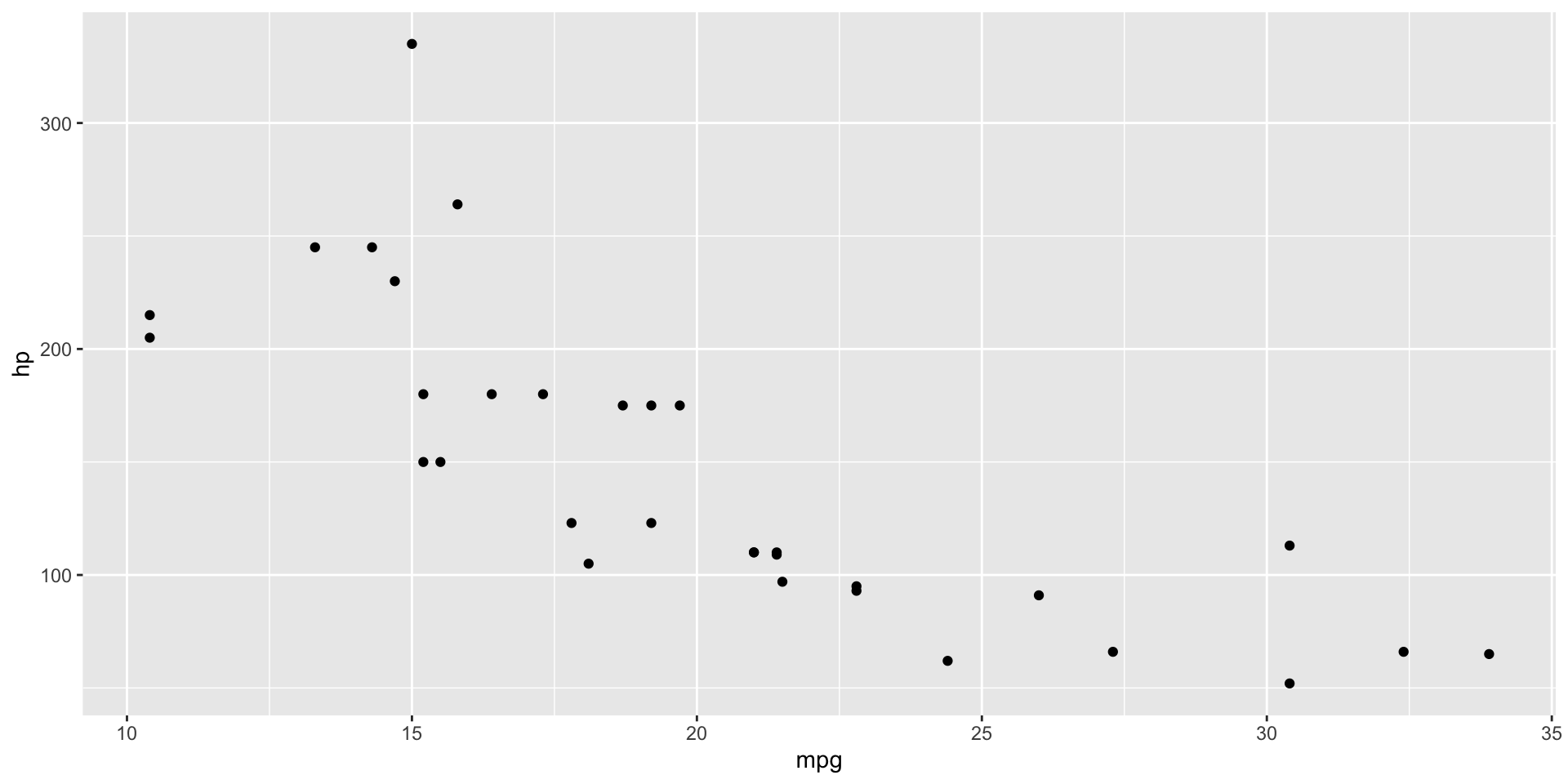
Outputting Figures
Use fig-width and fig-height to control the figure size.
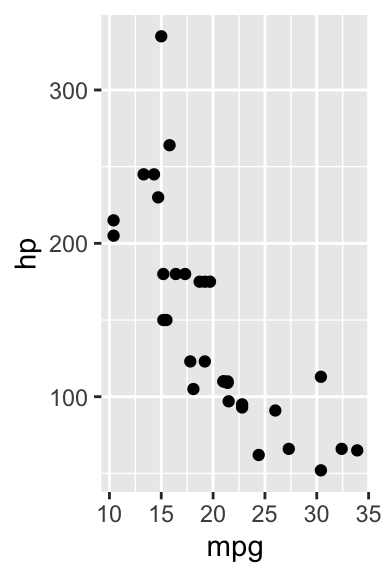
Live Coding Example
- Add a chart code cell to the Quarto document
- Change the “fig-cap” and “fig-width” settings
- Include a code cell, echo a code cell
Creating Presentations with Quarto
Output to Slides
There are a couple of options for making presentation slides:
format: beamer- uses LaTeX’s beamer package for PDF slides
format: revealjs- uses revealjs for making HTML slides
- this is what I use for my slides!
Slide Syntax
Individual slides are created with a level-2 header.
Slide 1 Title
Some text on my slide
Slide 2 Title
Some more text.
- a bullet point
- a second bullet point
Adding Pauses in RevealJS
You can add a pause in your presentation with ...:
Slide 1 Title
Some text.
- a bullet point
- a second bullet point
Incremental Lists
You can add pauses between bullet points with “incremental lists”:
Slide 1 Title
Some text.
- a bullet point
- a second bullet point
Quarto Divs
To implement incremental lists, we used a Quarto “div” with the class “incremental”.
These are similar to HTML divs, but are designed to work for all Quarto output formats.
Some Quarto “divs” will only work for a certain output (often HTML), but the goal is they work for as many outputs as possible.
Callout blocks
Quarto has a div for callout blocks:
my-slides.qmd
---
title: My Quarto Slides
format: revealjs
---

## Slide 1 Title

Some text.

:::{.callout-tip}
Some text in a callout block.
:::

:::{.callout-warning appearance="default"}
- a bullet point
- a second bullet point
:::

:::{.callout-note title="Note with Title" appearance="default"}
   A note with a title.
:::
Slide 1 Title
Some text.
Some text in a callout block.
Warning
- a bullet point
- a second bullet point
Note with Title
A note with a title.
Columns
Quarto has a div for columns:
Slide 1 Title
Some text.
Some text on the left.
Some text on the right.
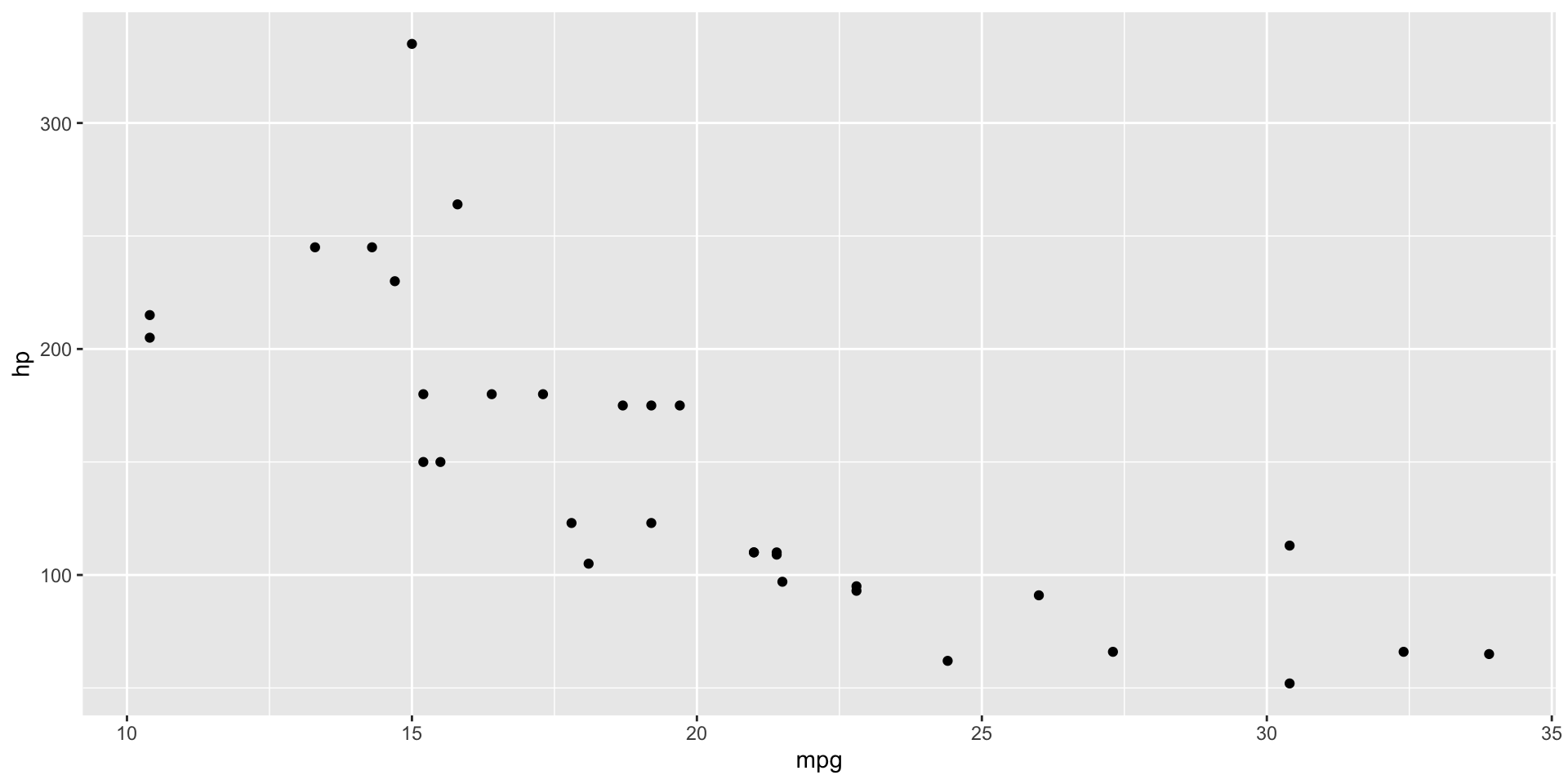
Code Cell Output in Columns
You can set a code cell to output in a column:
Slide 1 Title
Code Cell Output to Next Slide
You can set a code cell to output on the next slide:
Slide 1 Title
Slide 1 Title
Important RevealJS Setting: embed-resources
By default, HTML and RevealJS output does not include all of the resources (e.g. CSS, JS) in the output file.
If you want to share one file with everything included:
This document can then be opened on any computer without needing to worry about sharing multiple files or having internet access.
It does add a lot to the file size and a couple seconds to the rendering.
RevealJS Features
- Interactive slides
- i.e. a zoomable map, a figure with a slider bar, etc.
- Very customizable
- any HTML/CSS/JS can be added
- Easy to share online
- Slides can rescale to fit any screen size (plus zooming in and out)
Quarto Extensions
Quarto Extensions
Quarto extensions are third-party packages that add new features or templates to Quarto.
Two examples for slides:
- quarto-revealjs-clean
- a clean, minimal revealjs template
- What I use for these slides! (with some minor tweaks)
- quarto-leader-line
- adds “leader lines” to connect text and figures on slides
- example of a complicated new feature
Click on the links to see examples of each.
Installing Extensions
Quarto extensions are installed with:
- Installed in the current project
- in a
_extensionsfolder
- in a
This means you have to install each extension in each project.
- Or copy over the
_extensionsfolder.
You can list your extensions with: quarto list extensions
Live Coding Example
- Change the output format of the example document
- to revealjs
- to beamer
Live Coding Example
- Change the engine
- to Python (jupyter)
- to Julia (julia)