GitHub Issues, Branches, and Projects
Working collaboratively on GitHub and organizing tasks
Lecture Summary
- Task Management
- GitHub Issues
- GitHub Projects
- Collaborating
- Branches
- Pull Requests
Project Organization
A crucial aspect of any project is organizing tasks.
. . .
- especially with teams of people
. . .
- but also true for solo work
. . .
I am going to show you today the tools built in to GitHub for organizing tasks and workflows, and how they aid in working with others.
GitHub Issues
GitHub Issues
GitHub Issues are items you can create in a repository to plan, discuss and track work. - GitHub Docs
. . .
Issues are
- linked to a repository
- have a title and description
- and allow for further comments
. . .
They can be either
- “open” — work in progress, or need to do
- “closed” — finished
Opening an Issue
Issues for public projects can be opened by anyone (by default).
. . .
- This allows users to report literal “issues” with a product
. . .
- Then a developer is assigned that issue
- and closes it when it has been fixed.
. . .
For private projects, only you and your collaborators can open an issue.
Issue Quickstart

Each repository has an “Issues” tab.
We are going to follow along the GitHub Quickstart for GitHub Issues.
Opening a New Issue
- Click on the “Issues” tab
. . .
- Then click the green “New issue” button
. . .
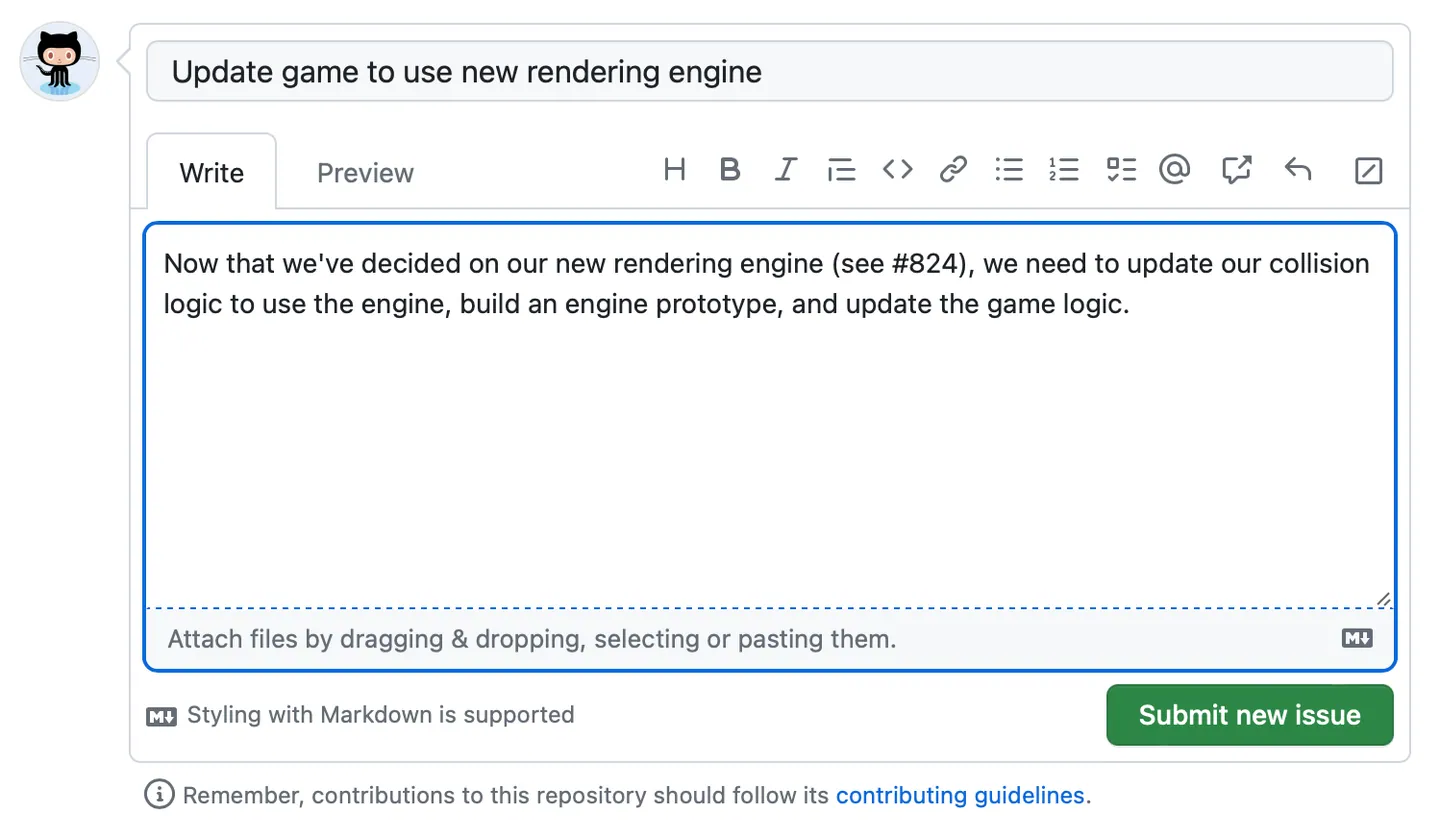
This will open an editor in your browser for the issue.
Writing an Issue

Issues have a title and description.
GitHub Issues are Markdown
The description is rendered as markdowon, allowing you to add
- formatting (headers, bold, italics, etc.)
- URL links
- code blocks
- tag other GitHub users
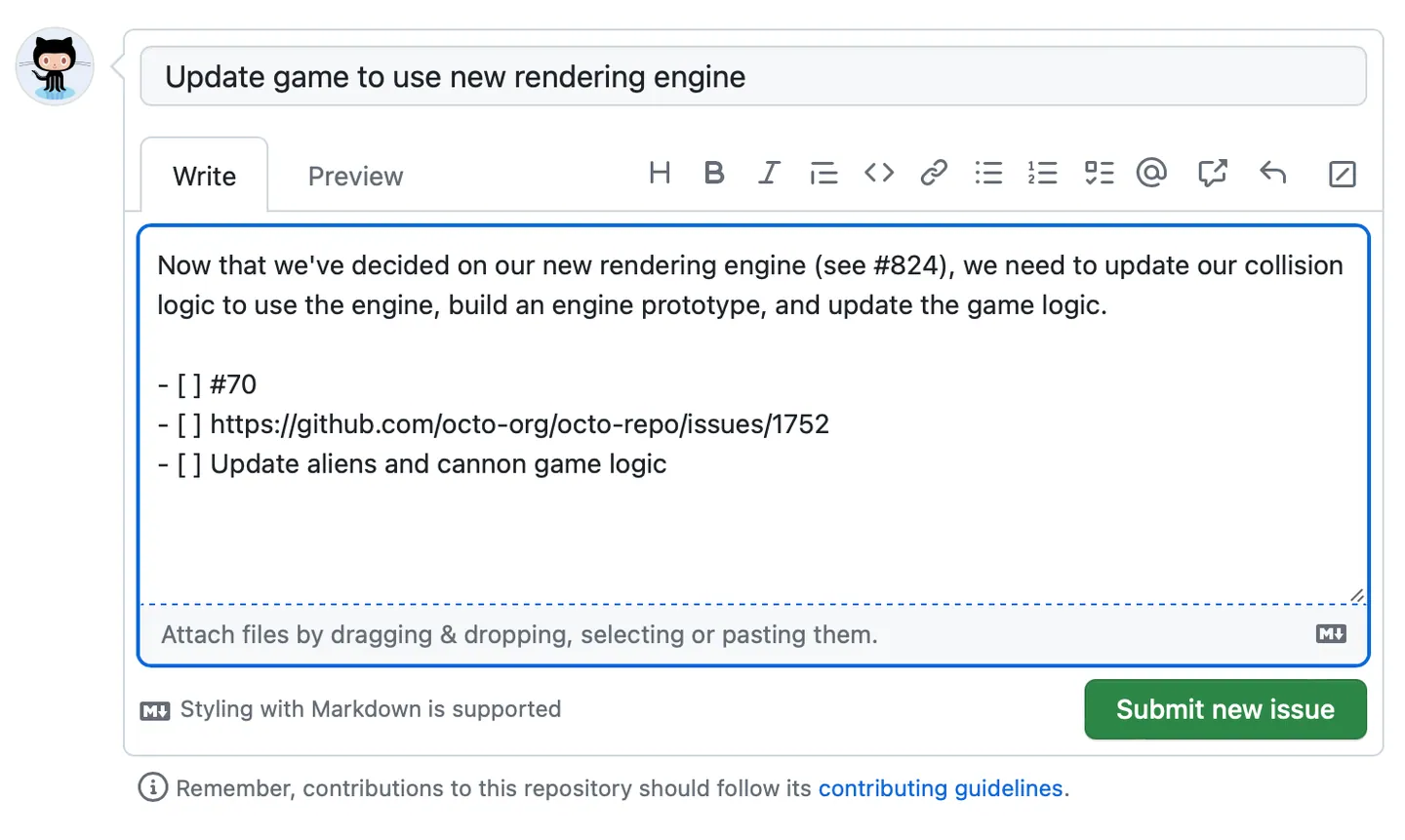
Adding a Task List to an Issue

This will be rendered as an interactive list that you can check-off as you complete the items.
Assigning the Issue
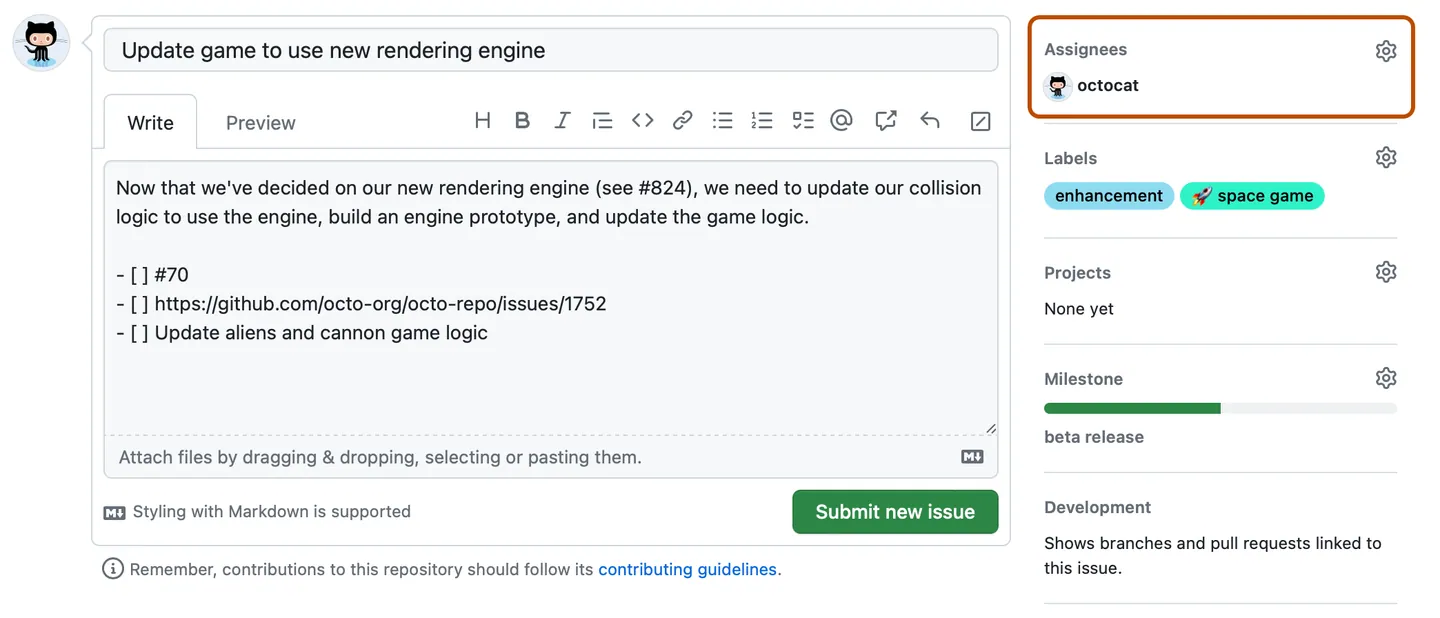
Issues can be assigned to yourself or to other GitHub users working on the repository.
Adding an Issue to a GitHub Project
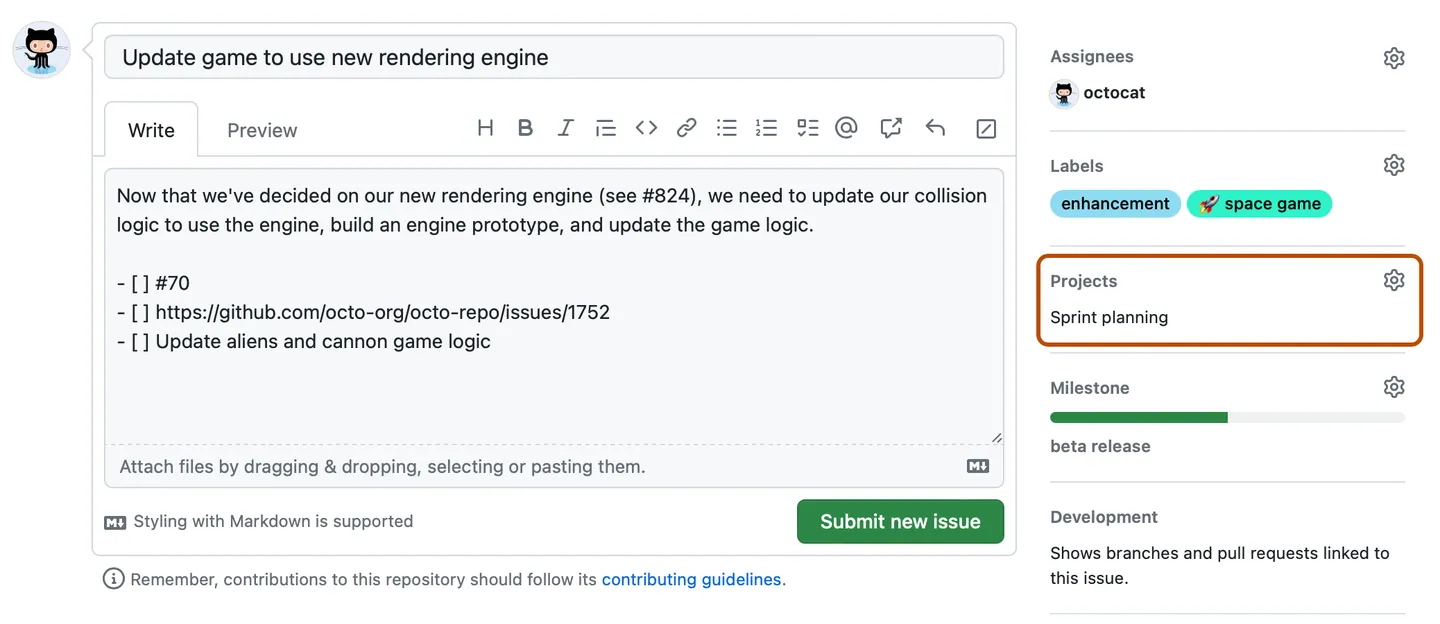
Issues can grouped together into “Projects”, which we will look at soon.
Communicating on an Issue
A big benefit of issues the ability to continue commenting on open issues.

. . .

. . .
This allows discussion and clarification of the task, and progress reports.
. . .
Comments have all the same markdown styling options.
Why use Issues?
You might think that these issues look a lot like an email-thread you’ve had with an advisor or professor.
. . .
But there are big differences:
- issues are connected to a repository
- issues allow assignees, milestones, labels
- issues are a documented record
. . .
Email is not a task management system.
. . .
Task Management
Task management is clearly important when you are working with others.
. . .
This is true when collaborating
- who does which step?
. . .
Or when you are the research assistant for a professor
- what are my tasks?
- when are they due?
- what exactly do I need to do?
. . .
And it is also crucial when you are working by yourself.
Task Managing Yourself
Treat yourself as your own RA - Camilla Adams
- break down your research project into tasks
. . .
- assign them to yourself
. . .
- do the tasks
. . .
Solo projects are collaborations between your current self and your future self.
GitHub Projects
GitHub Projects
A project is an adaptable spreadsheet, task-board, and road map that integrates with your issues and pull requests on GitHub to help you plan and track your work effectively.
. . .
You can create and customize multiple views by filtering, sorting, grouping your issues and pull requests, visualize work with configurable charts, and add custom fields to track metadata specific to your team. - GitHub Docs
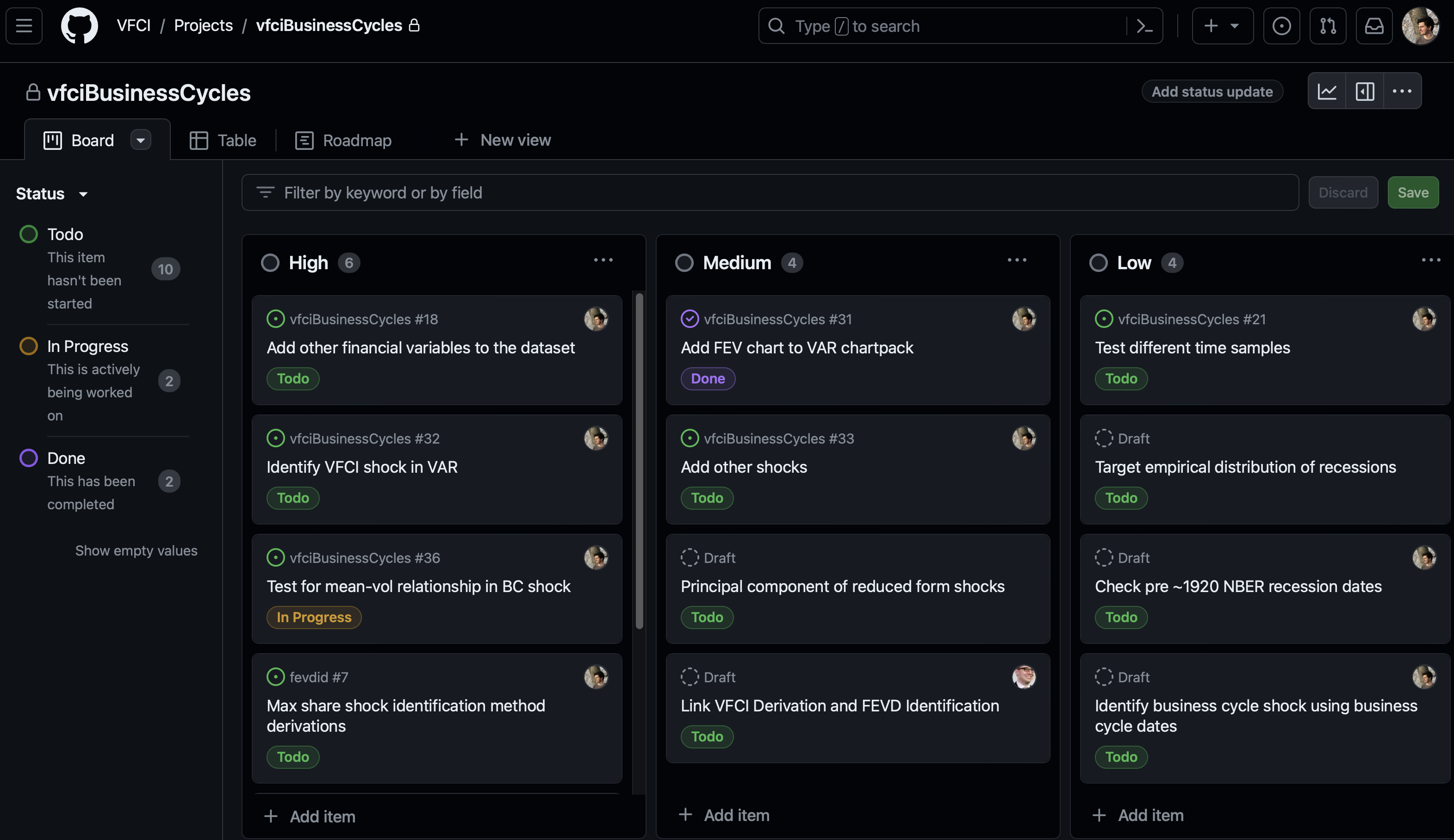
Projects Overview
Projects are attached to your GitHub profile (not a repository).
. . .
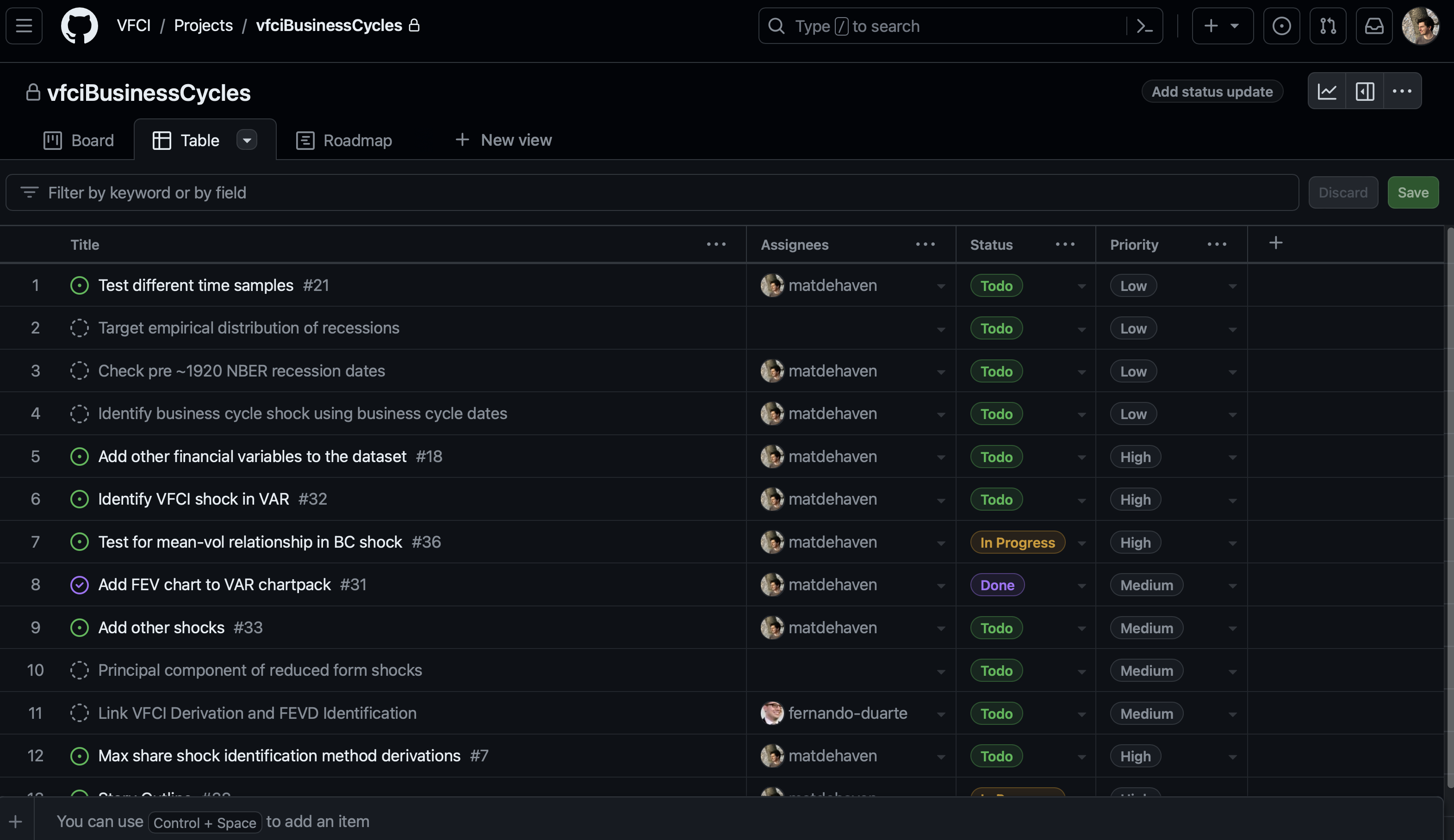
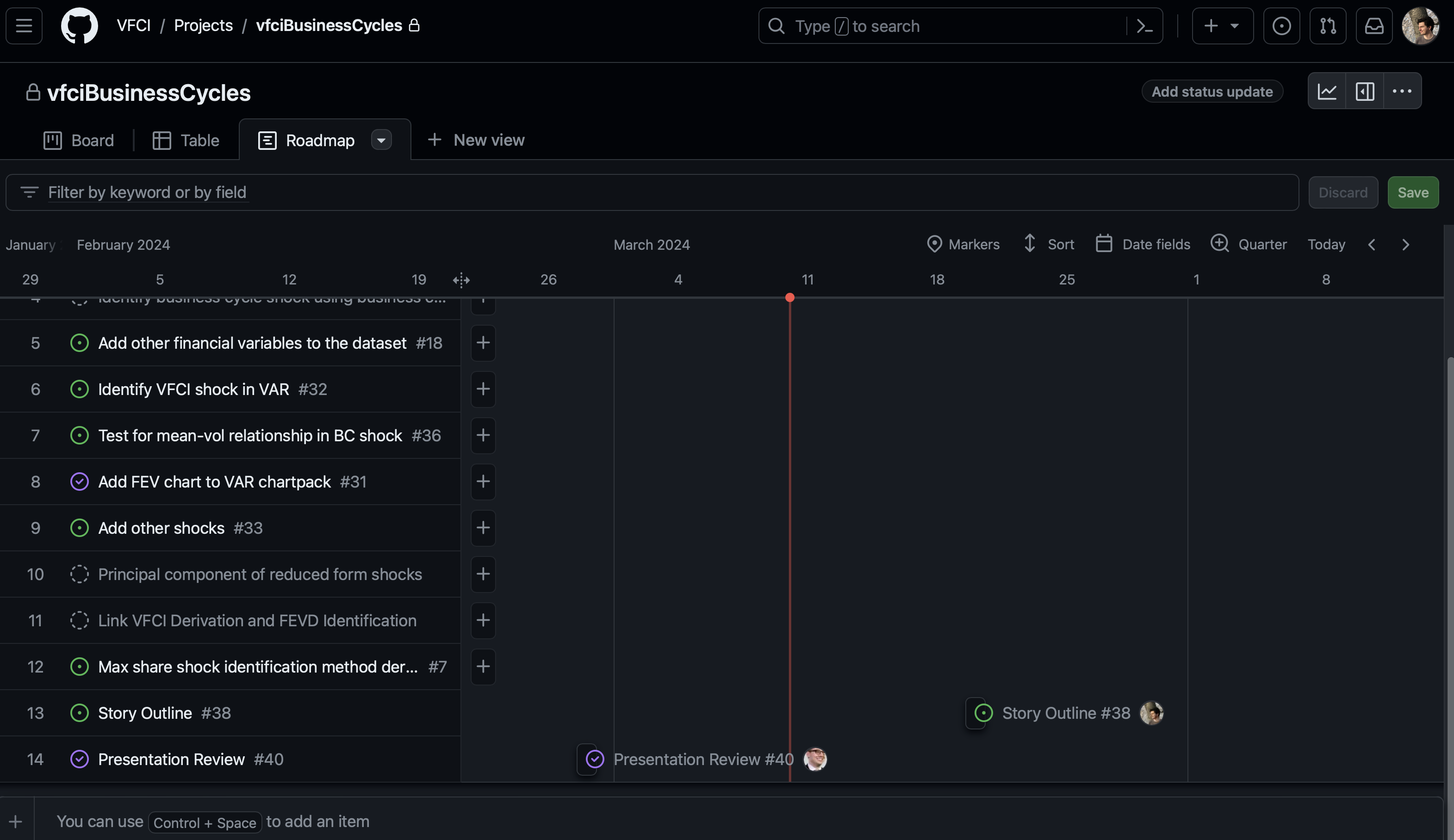
- Projects compile issues and allow
- different views: tables, “storyboards”, or “roadmaps”
- custom fields: priority, status, due dates, etc.
- combine issues from multiple respositories
Example Project Board

Example Project Table
Example Project Roadmap
Adding Issues to Projects
The easiest way to add an issue to a project is when creating it.

Adding Already Opened Issues to Projects
You can use the same method to add issues that have already been opened to a project.
. . .
Once added, you can then fill out any additional custom fields.
Addding an Issue from a Project
From a project, you can create a “draft” issue.
. . .
You can write the description, set all of the custom fields, etc.
. . .
Then assign the draft issue to a specific repository
GitHub Project Benefits
The major benefits of GitHub Projects:
. . .
- Custom fields
- Priority, due dates, anything you can imagine
. . .
- Different views
- “Board”, “Table”, “Roadmap”
- all better than the default list of issues
. . .
- combining issues from multiple repositories in one place
GitHub Projects Summary
GitHub Issues provide the basic tools needed to manage tasks.
. . .
GitHub Projects provides the advanced tools and the nice “visual” views.
. . .
Sometimes, GitHub Issues will be enough, but for any big research project, I recommend trying to use GitHub Projects too.
. . .
When you start your final project, I will ask you to set up a GitHub Project for it.
Git Branches
Adding Collaborators
For any respository on GitHub, you can add collaborators.
. . .
Go to the repository’s “Settings”
then “Collaborators”
and add their GitHub username
Working with Collaborators with Git
As long as you and your collaborators are not editing the same files,
you can push and pull to same GitHub repository.
. . .
But if you and your collaborator have conflicting commits
- i.e. you both edited the same file with different changes
. . .
then you will not be able to push to the repository without first resolving the conflict.
Resolving Conflicting Local vs. Remote Commits
One way to solve an out of sync local repository is to…
- “undo” your local commits
- pull the remote changes
- then redo your commits (or decide some of them are no longer needed)
- then push to the remote repository
Zero Branches
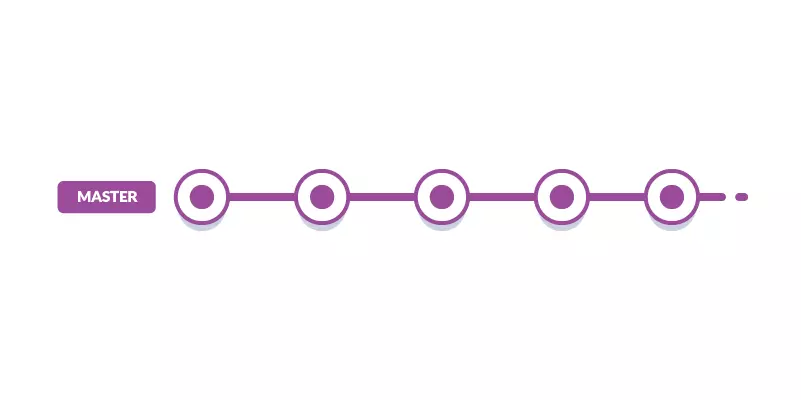
The default “branch” is called “master” or “main”.
This is how you have been using Git repositories so far.
Zero Branches
The default “branch” is called “master” or “main”.
This is how you have been using Git repositories so far.

Branches
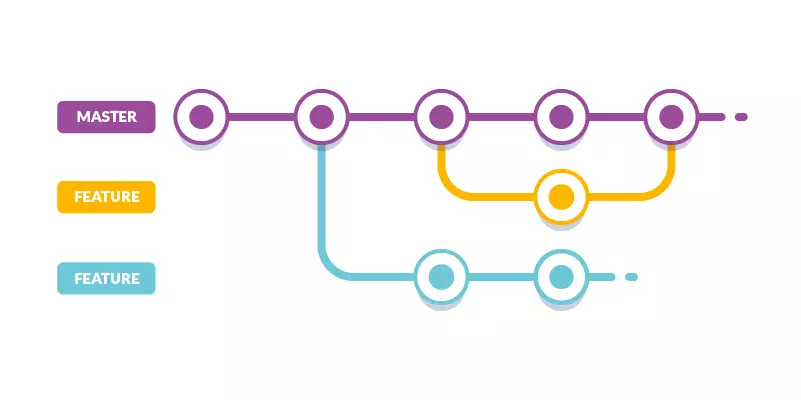
“Branches” allow you to split your GitHub repository into two (or more) states, each with their own set of commits.
Branches Overview
Branches allow you to develop features, fix bugs, or safely experiment with new ideas in a contained area of your repository. - GitHub Docs
. . .
Branches are like copying your entire repository to a new folder.
- Great for experimenting with new features
- Great for collaborating
Merging Branches Back to “Main”
When you are happy with the state of a branch, you will want to merge it back to the “main” repository.
. . .
GitHub calls this merge a “pull request”.
GitHub Pull Requests
Pull requests let you tell others about changes you’ve pushed to a branch in a repository on GitHub. Once a pull request is opened, you can discuss and review the potential changes with collaborators and add follow-up commits before your changes are merged into the base branch. - GitHub Docs
Opening a Pull Request
Once you have a branch that you want to merge back onto “main”,
- Open a pull request for your branch on GitHub
. . .
Pull requests will
- Compare your commits to the current state of “main”.
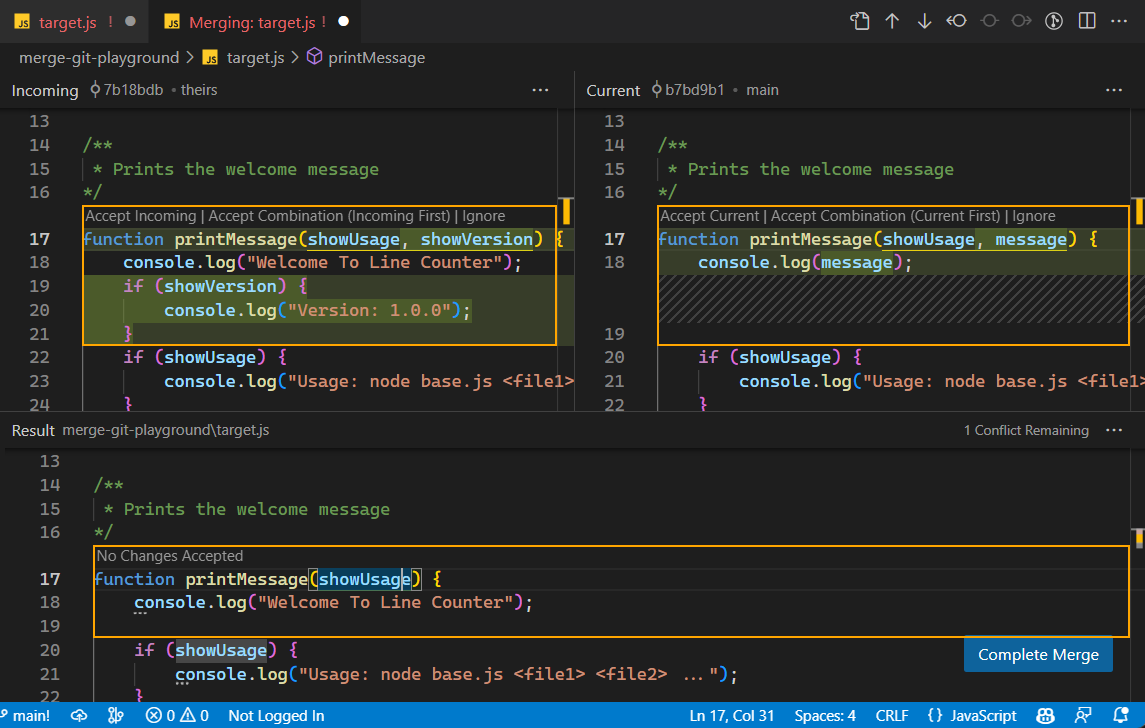
- Are there any conflicts?
- If yes, you can resolve them—by choosing one version to keep.
- Runs any tests you have written in GitHub Actions
- Allows you to request “review” from another collaborator
Branches
After a succesful pull request, you can delete the branch.
- This keeps its history, but you can’t commit to it anymore.

Branch Models
Branches are a tool and there are a lot of ways to use them in practice:
. . .
- Zero Branches
- just use “main”
. . .
- Development Branch
- “main” for finished work
- a “development” branch for work in progress
. . .
- Feature Branches
- “main” for finished work
- a new feature branch for each feature
Branches Overview
Branches complicate the flow of Git commits
. . .
but they have real benefits
- for organizing your work
- for collaborating with others.
Summary
Summary
- Task Management
- GitHub Issues
- GitHub Projects
- Collaborating
- Branches
- Pull Requests
Live Coding Example
- Creating a branch
- Creating a Pull Request
In Class Exercise
- Create a temporary GitHub repository
- Open an issue on the repository
- assign it to yourself
- Create a temporary GitHub Project
- Add the issue to the project